
Get In-Demand Finance Certifications
Get the number of workdays between two given dates
The NETWORKDAYS Function[1] calculates the number of workdays between two dates in Excel. When using the function, the number of weekends are automatically excluded. It also allows you to skip specified holidays and only count business days. It is categorized in Excel as a Date/Time Function. You can use this formula to calculate working days in Excel between two dates.
In finance and accounting, the net workdays function is useful in calculating employee benefits that accrue based on days worked, the number of working days available during a project, or the number of business days required to resolve a ticket raised by a customer, etc.
=NETWORKDAYS(start_date, end_date, [holidays])
The function uses the following arguments:
It is recommended that the start_date, end_date and [holidays] arguments are entered as either:
Let’s see a few examples to understand how the NETWORKDAYS function to calculate working days in Excel.
Suppose we wish to calculate the workdays or business days from January 15, 2017 to January 21, 2018. The holidays in between are:
To calculate the number of working days, we use the following function:
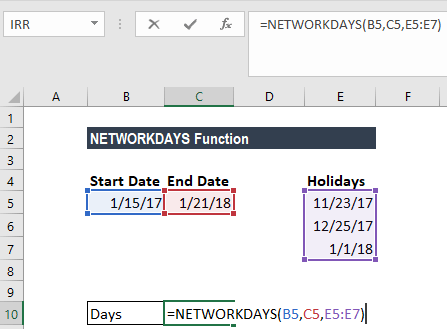
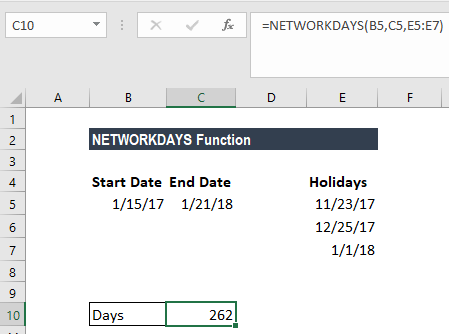
Using the formula above, we will get the number of working days as 262, as shown below.
Click here to download the sample Excel file
Thank you for reading CFI’s guide on NETWORKDAYS Function. To keep learning and advancing your career, the following resources will be helpful:
To master the art of Excel, check out CFI’s Excel Crash Course, which teaches you how to become an Excel power user. Learn the most important formulas, functions, and shortcuts to become confident in your financial analysis.
Launch CFI’s Excel Crash Course now to take your career to the next level and move up the ladder!


