Sheet Name Code
This article outlines how to display the name of a sheet in Excel.
What is Sheet Name Code Excel Formula?
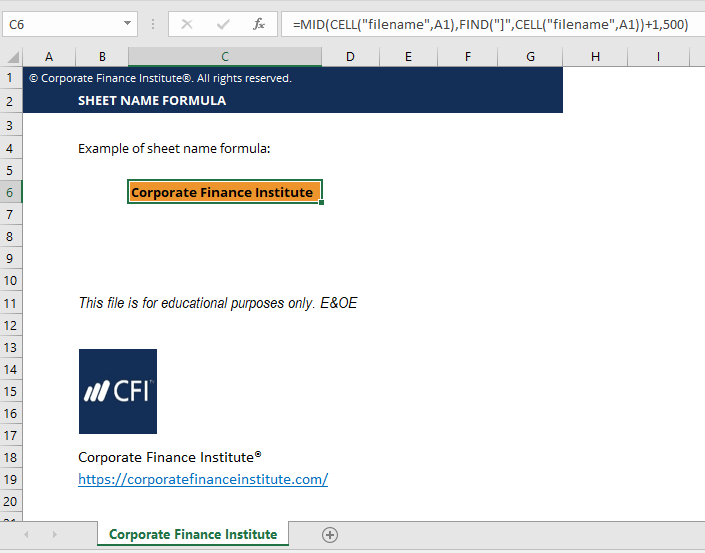
The =SheetName allows you to display the name of a Sheet in a cell. Using the sheet name code Excel formula requires combining the MID, CELL, and FIND functions into one formula.
For example, if you are printing out a financial model onto paper or as a PDF, then you may want to display the sheet name on the top of each page. You can now easily do so by using this formula.
Sheet Name Code Excel Formula
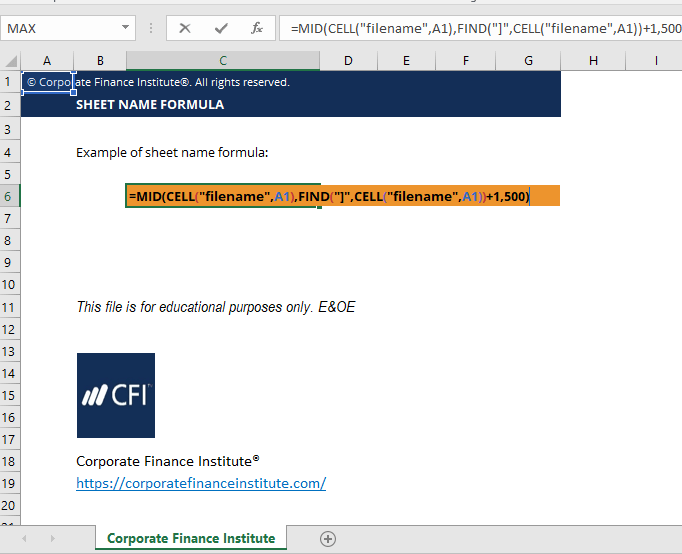
=MID(CELL(“filename”,A1),FIND(“]”,CELL(“filename”,A1))+1,500)
(See screenshots below)
How to Create the Sheet Name Code in Excel
Here’s a step-by-step guide to creating the sheet name code Excel:
- Type “CELL(“filename”,A1)”. The cell function is used to get the full filename and path. This function returns the filename of .xls workbook, including the sheet name. This is our starting point, and then we need to remove the file name part and leave only the sheet name.
- Type “FIND(“]”,CELL(“filename”)+1,500″. ssentially what the formula does is go into the file name and find the “]” which is where the workbook name ends. From there it moves over one character (+1) to where the sheet name starts. Finally, we add 500 to the end, or any number that is larger than the number of characters a sheet name would realistically have.
Congratulations, you have now displayed the name of a sheet in Excel!
Sheet Name Code Excel Template
Download the Free Template
Sheet Name Formula Template
Download the free Excel template now to advance your finance knowledge!
More Excel Development
This has been CFI’s guide to the sheet name code Excel formula. To keep learning and expanding your skill set and knowledge base as a financial analyst, we highly recommend these additional resources to help you advance your career. Some of our most popular resources from CFI include:
Excel Tutorial
To master the art of Excel, check out CFI’s Excel Crash Course, which teaches you how to become an Excel power user. Learn the most important formulas, functions, and shortcuts to become confident in your financial analysis.
Launch CFI’s Excel Crash Course now to take your career to the next level and move up the ladder!