Get In-Demand Finance Certifications
Step-by-step guide to combining cells in Excel
The most common reason to merge cells is for formatting and centering headings. This guide will show you how to merge cells[1] in Excel, even though it is highly recommended that you don’t merge them unless you absolutely need to. As an alternative, we recommend using the Center Across Selection feature.
Formatting choices like this are part of the Excel fluency employers screen for. This rundown of the Excel skills employers look for lists the ten that come up most often.
Follow the steps below to learn how to easily combine multiple cells in an Excel spreadsheet. Use the screenshots as a guide and then try it on your own!
Select the cells you want to merge. Highlight them with your mouse or by starting in one cell, holding Shift, then using the arrows to select to the end.
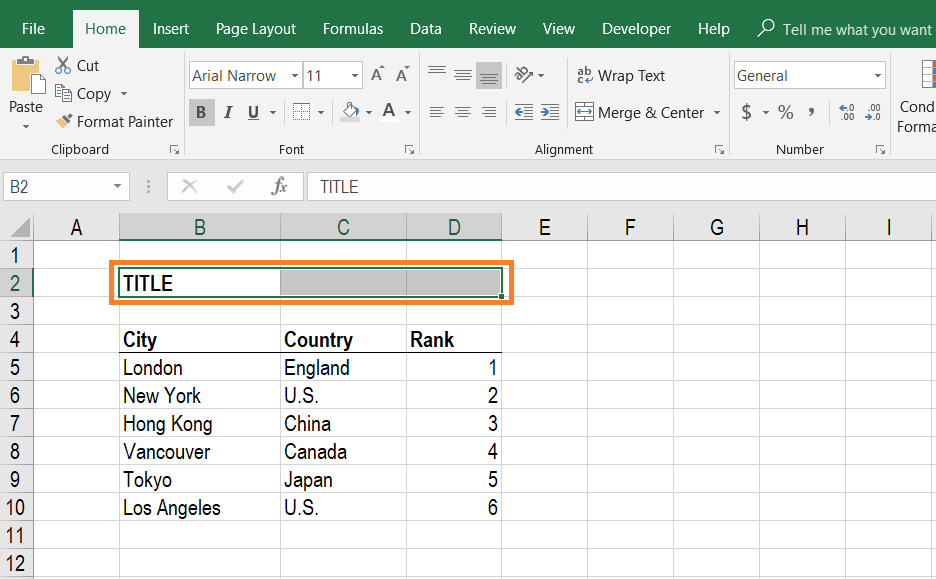
On the Home Ribbon, select the Format Cells button, or press the keyboard shortcut Ctrl + 1 to open the Format Cells dialogue box.
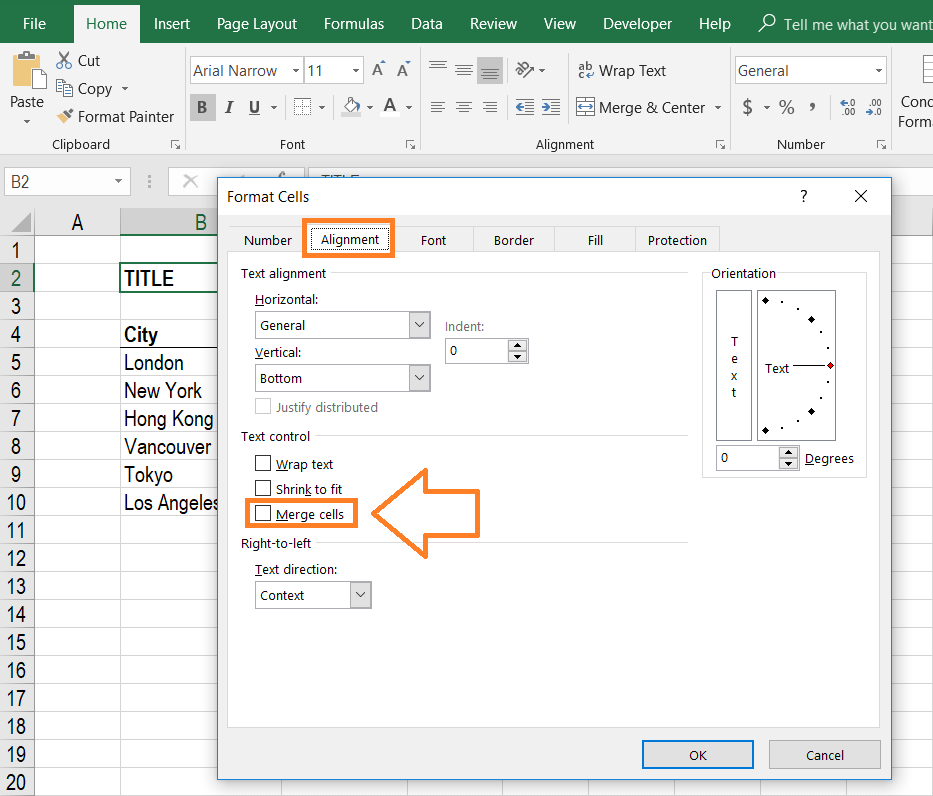
Inside the Format Cells menu, click on the Alignment tab and tick the box that says Merge Cells.
Learn step-by-step in CFI’s Free Excel Crash Course!
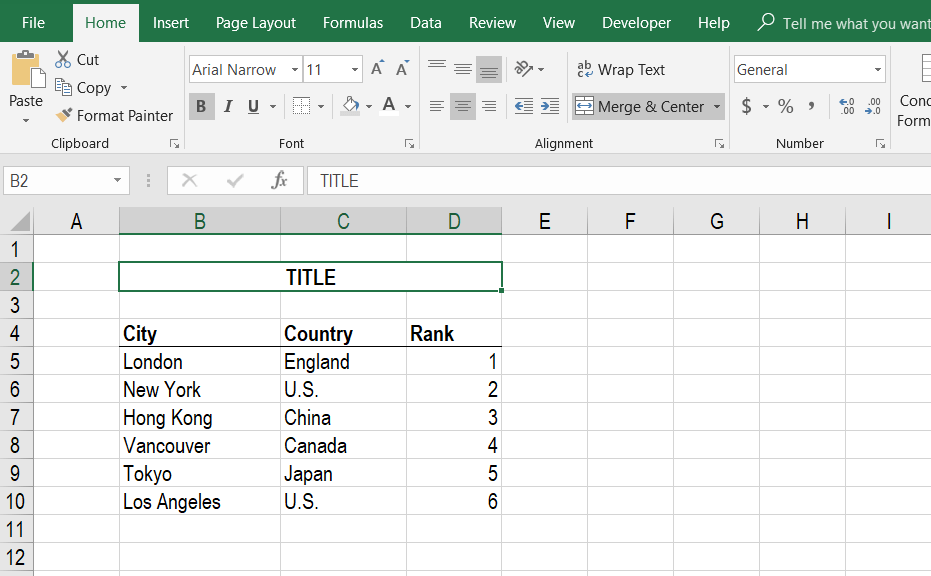
Click the center to place the title in the center of the merged cells and set a background color to make the title really stand out.
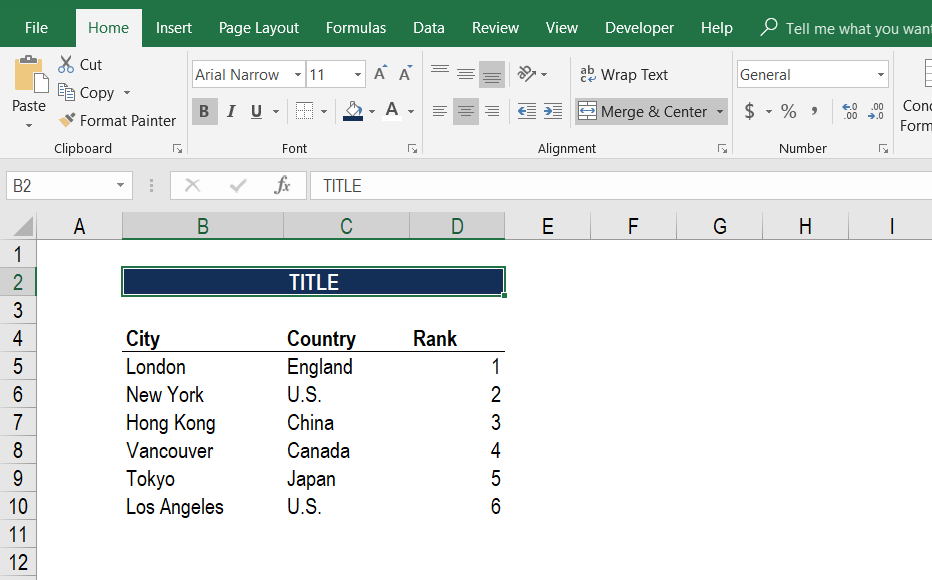
Merging cells is not recommended because it interferes with actions you may wish to take later while building your financial model. For example, if you want to insert or delete columns across the middle of merged cells, you will not be able to.
You can achieve the same formatting outcome as merging cells by using the Center Across Selection function.
Follow the steps below to perform the action yourself.
Select the cells you want to center using the mouse or holding the Shift key and using the keyboard arrows.
Learn step-by-step in CFI’s Free Excel Crash Course!
Open the Format Cells dialogue box on the Home Ribbon, or by pressing Ctrl + 1 (Windows shortcut, see the Mac equivalent shortcut).
Now, click on the Alignment tab and then choose Center Across Selection. Note: be sure to uncheck Merge Cells if it’s already checked.
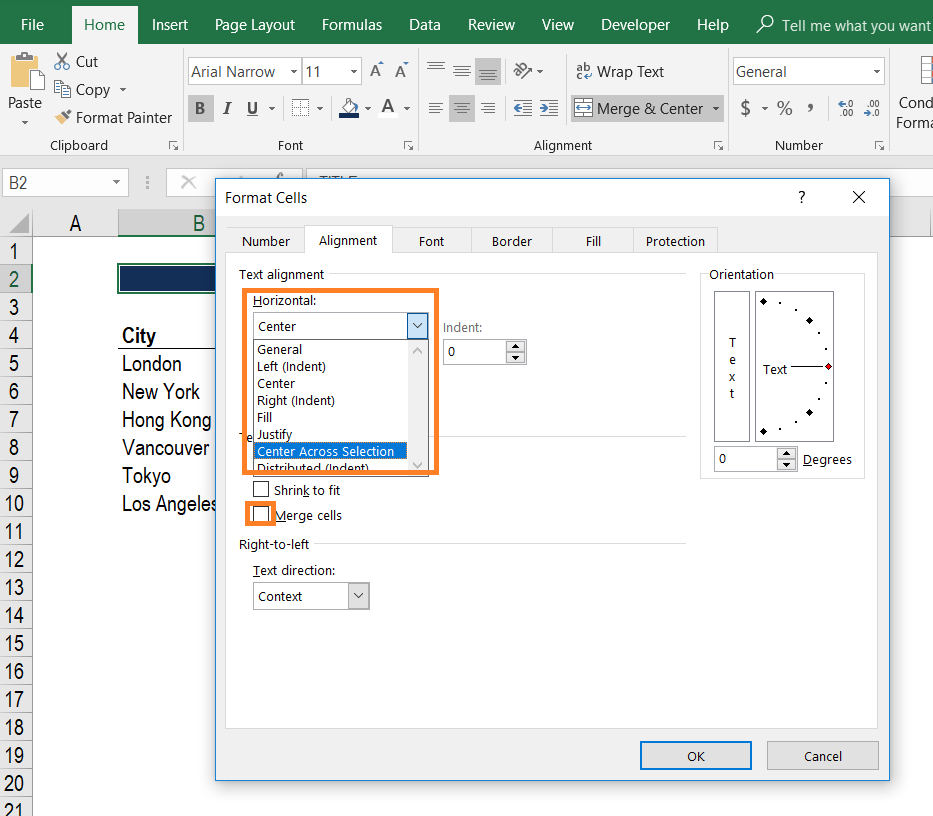
Congratulations! You now have nicely centered text without combining cells.
Modeling standards discourage merged cells because they break copying, sorting, and formulas, and those standards matter most in roles that build models every day. This list of careers that require financial modeling skills shows which roles those are.
Avoiding merged cells is one of several habits that keep a workbook easy to audit and update. If you want to build those habits through formal training, this guide to choosing the best Excel certification course explains what to look for. If your goal is financial modeling, this guide to choosing the best financial modeling course compares what different programs teach.
Thank you for reading CFI’s guide to Merging Cells in Excel. To continue learning and advancing your career, these additional CFI resources will be useful: