Get Certified for Financial Modeling (FMVA)®
Gain in-demand industry knowledge and hands-on practice that will help you stand out from the competition and become a world-class financial analyst.
Learn the top advanced Excel formulas used by financial analysts to manipulate large datasets and improve data accuracy.
Learn about the ten essential advanced Excel formulas for financial analysts, including INDEX MATCH, IF combined with AND/OR, OFFSET with SUM or AVERAGE, CHOOSE, XNPV and XIRR, SUMIF and COUNTIF, PMT and IPMT, LEN and TRIM, CONCATENATE, and CELL functions.
These advanced Excel formulas are crucial for performing complex data analysis, financial modeling, and enhancing spreadsheet functionality. In this advanced Excel formulas list, you’ll find each formula explained with examples that demonstrate how you can apply them in financial analysis.
Every financial analyst spends more time in Excel than they may care to admit. Based on years and years of experience, we have compiled the most important and advanced Excel formulas that every world-class financial analyst must know.
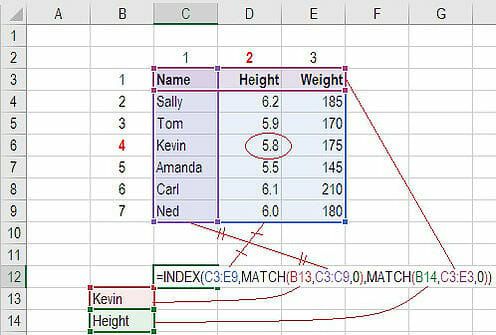
Formula: =INDEX(C3:E9,MATCH(B13,C3:C9,0),MATCH(B14,C3:E3,0))
This is an advanced alternative to the VLOOKUP or HLOOKUP formulas (which have several drawbacks and limitations). INDEX MATCH is a powerful combination of Excel formulas that will take your financial analysis and financial modeling to the next level.
INDEX returns the value of a cell in a table based on the column and row number.
MATCH returns the position of a cell in a row or column.
Here is an example of the INDEX and MATCH formulas combined together. In this example, we look up and return a person’s height based on their name. Since name and height are both variables in the formula, we can change both of them!
For a step-by-step tutorial, please see our free guide on how to use INDEX MATCH in Excel.
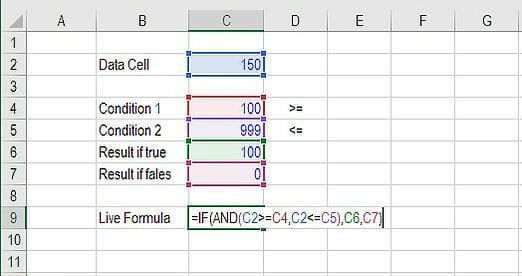
Formula: =IF(AND(C2>=C4,C2<=C5),C6,C7)
Anyone who’s spent a great deal of time doing various types of financial models knows that nested IF formulas can be a nightmare. Combining IF with the AND or the OR function can be a great way to keep formulas easier to audit and easier for other users to understand. In the example below, you will see how we used the individual functions in combination to create a more advanced formula.
For a detailed breakdown, please see our free guide on how to use IF with AND / OR.
Formula: =SUM(B4:OFFSET(B4,0,E2-1))
The OFFSET function on its own is not particularly advanced, but when we combine it with other functions like SUM or AVERAGE, we can create a pretty sophisticated formula. Suppose you want to create a dynamic function that can sum a variable number of cells. With the regular SUM formula, you are limited to a static calculation, but by adding OFFSET, you can have the cell reference move around.
To apply this formula, we substitute the ending reference cell of the SUM function with the OFFSET function. This makes the formula dynamic, and the cell referenced as E2 is where you can tell Excel how many consecutive cells you want to add up. Now we’ve got some advanced Excel formulas!
Below is a screenshot of this slightly more sophisticated formula in action.
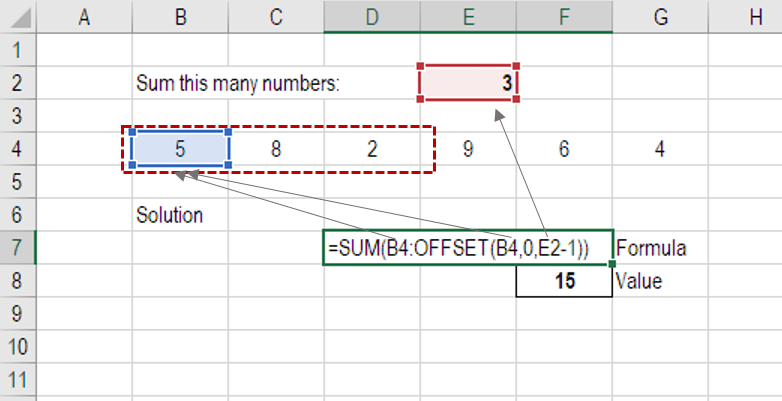
As you see, the SUM formula starts in cell B4, but it ends with a variable, which is the OFFSET formula starting at B4 and continuing by the value in E2 (“3”), minus one. This moves the end of the sum formula over 2 cells, summing 3 years of data (including the starting point). As you can see in cell F7, the sum of cells B4:D4 is 15, which is what the offset and sum formula gives us.
In this example, the SUM formula starts in cell B4, but it ends with a variable, which is the OFFSET formula starting at B4 and continuing by the value in E2 (“3”), minus one. This moves the end of the sum formula over 2 cells, summing 3 years of data (including the starting point).
As you can see in cell F7, the sum of cells B4:D4 is 15, which is what the offset and sum formula gives us.
Learn to build an OFFSET function with guided step-by-step instruction in CFI’s Advanced Excel Formulas & Functions course.
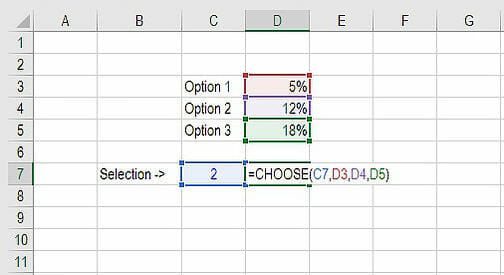
Formula: =CHOOSE(choice, option1, option2, option3)
The CHOOSE function is great for scenario analysis in financial modeling. It allows you to pick between a specific number of options and return the “choice” that you’ve selected. For example, imagine you have three different assumptions for revenue growth next year: 5%, 12%, and 18%. Using the CHOOSE formula, you can return 12% if you tell Excel you want choice #2.
Read more about scenario analysis in Excel in our free guide.
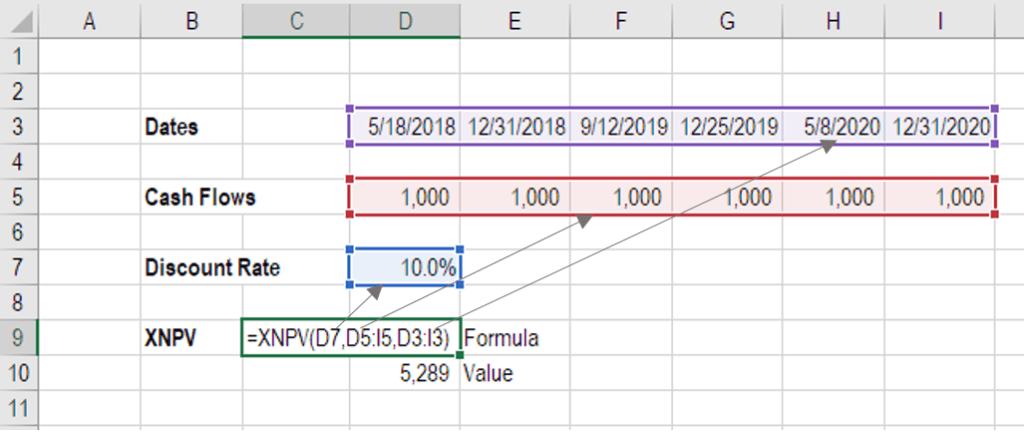
XNPV Formula: =XNPV(discount rate, cash flows, dates)
If you’re an analyst working in investment banking, equity research, financial planning & analysis (FP&A), or any area that requires discounting cash flows, then these formulas are a lifesaver.
Simply put, XNPV and XIRR allow you to apply specific dates to each individual cash flow that’s being discounted. The problem with Excel’s basic NPV and IRR formulas is that they assume the time periods between cash flows are equal. Routinely, as an analyst, you’ll have situations where cash flows are not timed evenly, and this formula is how you fix that.
For a more detailed breakdown, see our free IRR vs XIRR formulas guide and XNPV guide.
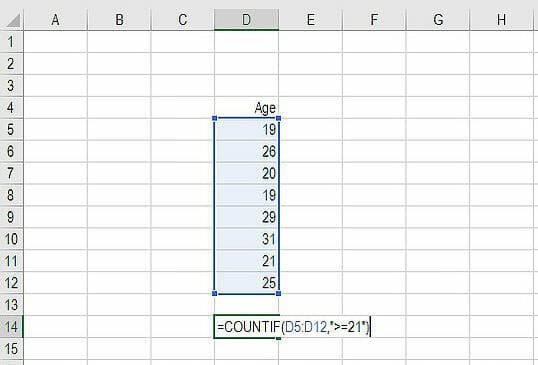
Formula: =COUNTIF(D5:D12,”>=21″)
These two advanced formulas are excellent examples of conditional functions in use. SUMIF adds all cells that meet certain criteria, and COUNTIF counts all cells that meet certain criteria.
For example, suppose you need to know how many bottles of champagne to order for a client event. In your spreadsheet, you can use COUNTIF to quickly count all cells of guests aged 21 (the legal drinking age in the U.S.) or older.
The screenshot below demonstrates this example.
Formula: =PMT(interest rate, # of periods, present value)
If you work in commercial banking, real estate, FP&A, or any financial analyst position that deals with debt schedules, you’ll want to understand the PMT and IPMT formulas.
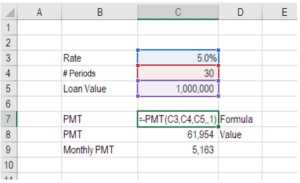
The PMT formula gives you the value of equal payments over the life of a loan. You can use it in conjunction with IPMT (which tells you the interest payments for the same type of loan), then separate principal and interest payments.
Here is an example of how to use the PMT function to get the monthly mortgage payment for a $1 million mortgage at 5% for 30 years.
Formulas: =LEN(text) and =TRIM(text)
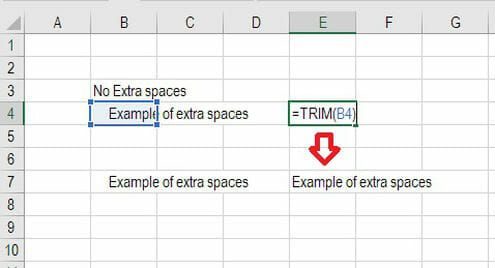
The LEN and TRIM formulas are less common but sophisticated. They are great for financial analysts who need to organize and manipulate large amounts of data. Unfortunately, the data we get is not always perfectly organized, and sometimes, there can be issues like extra spaces at the beginning or end of cells.
The LEN formula returns a given text string as the number of characters, which is useful when you want to count how many characters there are in some text.
In the example below, you can see how the TRIM formula cleans up the Excel data.
Formula: =CONCAT(A1, ” more text”)
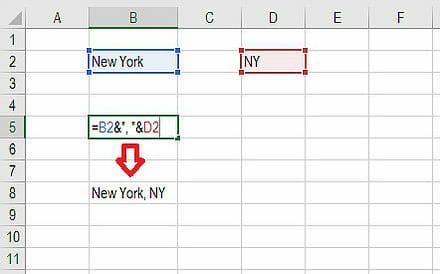
CONCAT is the modern Excel function for joining text. It lets you combine cell values and text strings and can also work with ranges, which makes it more flexible than older methods. Analysts often use CONCAT to build dynamic labels, headers, or summary text that updates automatically as source data changes.
For example, you can join “New York” in one cell with “NY” in another to produce “New York, NY”. Instead of updating a single hard-coded label, you adjust the underlying cells and let Excel rebuild the text for you. With a large data set, this is a valuable skill to have at your disposal.
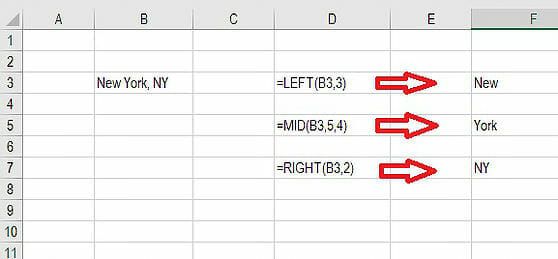
This group of advanced Excel functions can be combined to create some very advanced and complex formulas. The CELL function can return a variety of information about the contents of a cell (such as its name, location, row, column, and more). The LEFT function can return text from the beginning of a cell (left to right), MID returns text from any start point of the cell (left to right), and RIGHT returns text from the end of the cell (right to left).
Below is an illustration of the three formulas in action.
Connect what you just learned to a clear career path with CFI’s role‑based courses and certification programs.
We hope these top 10 advanced Excel formulas have been helpful for you. They should go a long way toward improving your financial analysis and financial modeling skills.
Below are more CFI resources to help you become an Excel power user:
CFI is the global institution behind the Financial Modeling & Valuation Analyst (FMVA®) Certification. We are on a mission to empower anyone to become a great financial analyst and pursue a successful career path.
In order to become a great financial analyst, here are some more questions and answers for you to discover: